What is the Image Tab?
What is the Image Tab?
The Image tab is where users are able to store and organize the images, evidence, PDFs, and documents from the case.
The image tab is organized with the folders on the left, then the image details that can be viewed as details or icons, and on the right, there is a Preview of the record as well as the details and an Image log.
Users can use the “Search PDF Content” to search for a specific word or words that are inside the PDF document. Users can also sort and filter using the headers to find a specific record in the Image tab.
Users can modify their view of the tab by switching between an Icon view and the Detail view by selecting the View button at the top of the screen.
What actions can be done from the Image Tab?
To select an action right click on the record to open the options menu.
- Add, Edit, and Delete Images
- Add a reviewer
- Bookmark a record
- Concatenate multiple records into single PDF
- Convert to Preview Media
- Create folders to group Image records to be more organized
- Download the record
- E-file Image
- Email record
- Open Media Analysis
- Open the image in a new tab
- Print the record
- Redact PDF
- Rotate a PDF
- Send Discovery
- Send Media for Analysis
- Share a file via CIP Portal
How to use the Image Tab?
On the Image tab users can select the Add button, and they will be able to add an Image, create a new folder, or add a hyperlink, Image.
These options are also accessible through the right click menu.
How to add a new image?
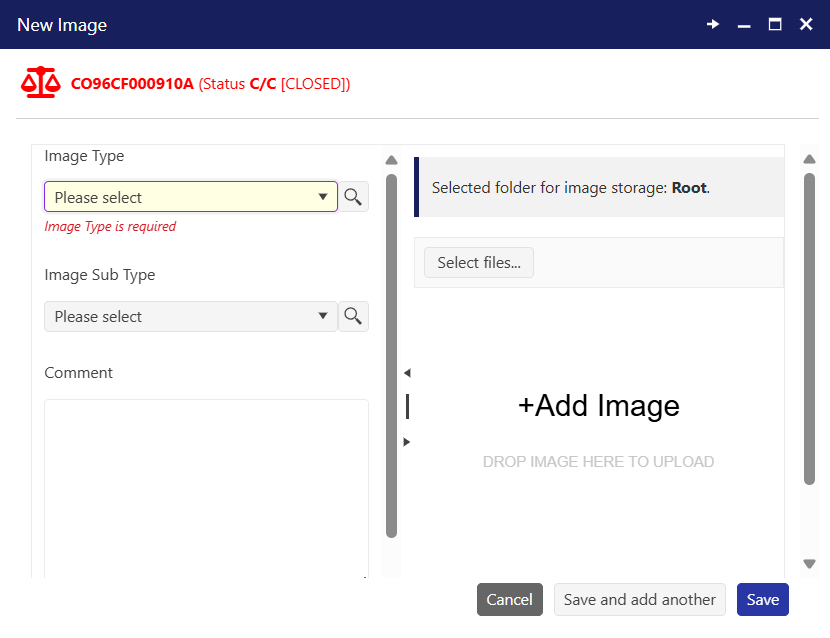
To add a new Image on the Image tab, select the add button and fill out the Image Type and drag the file to the drop area. Users can also select the "Select files" option on the top right of the screen to search for a file.
When adding an Image users can see which folder they are adding the Image before saving to make sure the image is added to the correct folder.
How to use the folders in the Image Tab?
To add an Image folder, the user can select the add button on the top of the screen and create a new folder. The new folder will appear on the left side of the screen.
How to edit a folder in the Image tab?
To edit a folder that was already created, simply right click on the folder. This will allow the user to either add an image to the folder, create a sub folder, rename the folder, delete the folder, and download the contents of that folder.

When users delete a folder, they will be deleting all subfolders and images contained within them. The user will get a confirmation to confirm they want to delete everything, so no mistakes are made.
Related Articles
How to add a reviewer in the Image tab?
Introduction The add reviewer button in the image tab allows users to add another employee to review the document or Image. It makes it possible for the users to add a reviewer without being in any workflow. When a user is adding a reviewer all they ...How to use the Image Review?
What is the Image Review? The image review is a great tool to see all the images that are pending review. By default, STAC will show the images for the user that is logged in and any images that they are assigned to review. A user will be notified ...How to copy an Image to another case?
Can I copy an image from one case to another case? Yes, users can copy images from one case to another case. It is important to note that users can add multiple images to a singles case. However, Users can not add images to multiple cases at the same ...How to search in the Image Tab?
How to search PDFs in the Image Tab? The PDF indexing configurations must be enabled for this search to work properly on the Image tab and Image search screens. There are a few ways to find specific information while using the PDF content search: ...What is the Image Search?
What is the Image Search? The image search is a tool used to easily search for images in any case. This is useful when users are searching for an image but are not sure what case the image was related to. Users can use one or many filters to find the ...