How to use Forms?
What is STAC forms?
CIP Portal Forms lets users create, design, and send custom Forms/Questionnaires within STAC to anyone with a valid email address. Upon completing the forms, the files will be automatically added back into STAC in the Form tab.
Users can review the answers and mark a form as complete in the Form tab. Users also have the ability to filter by forms that have been created, sent, reviewed, and completed. Users can also update the information in STAC from the answers that the recipient provides in the forms.

Users need to have the CIP Portal in order to send forms.
How to use Forms?
Users can design and choose among different form fields and layouts. They can even specify their size and whether the field is required. Users can also link form fields with specific areas in STAC (E.g. Directory Address, Name, Date of Birth, etc.).
Upon receiving the form back, the user will have the option to update the linked area values. The form will be located in the Form tab and will show the status of created. Once the email is sent, the status will change to "Sent to recipient".
Users can send forms in 2 ways:
1. Go to the Relationship tab > Right click Menu > CIP Portal > Send forms
2. Go to the Form Tab > New
When sending a form, the user can select the individual who will be receiving the form, which form is being sent, and any additional comment.
The recipient of the form will receive an email and will need to register a new account if they do not have a free CIP Portal account in order to complete the form. The recipient can also save their answers and come back later at any time until they are done and click Finish and Submit. If any additional files were uploaded to the form, CIP Portal scans for any viruses before sending them back to STAC.
When the recipient has completed the form, they will still be able to see their form in their Portal account, but they cannot make any changes. The status will appear as "Received - Review needed".
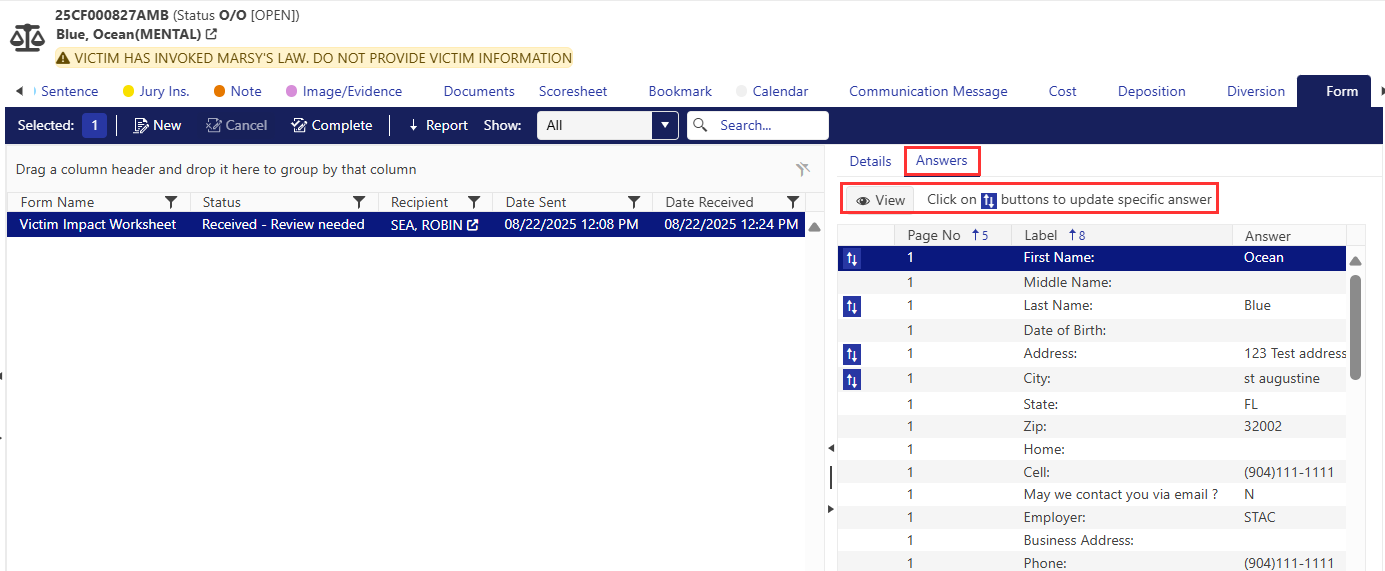
Users have the options to Update STAC fields and Mark a Form as Completed.
How to update STAC with answers from a Form?
Forms can be very useful to get information from relationships of a case. However, not only does the form get sent through the CIP Portal and return to STAC but it can be configured to map information that was received in the form to update the data tables inside STAC. The admin will need to map which field is correlated to a specific table in STAC, so the information is updated correctly.

The information that is received back into STAC after the form was completed will not automatically update the database.
Select Answers to see the questions and answers from the form. Users can click View to see a different view of the form and its answers. Stac shows the user the values that were added and compares them to the information we have in the individual’s Directory. If the information is different, the field will have the icon with the arrows, simply select the icon, and STAC will updates the Directories values.
Related Articles
What is the Form Search?
What is the Form Search? The form search is where users can view forms that have been sent out through STAC. Users are also able to view the answers from the form and update STAC directly from the form search screen. To access the form search, go to: ...How to send a Form through the Relationship Tab?
How to send a Form through the Relationship Tab? Users are able to send questionnaires or request files through the CIP portal from the relationship tab. The relationship needs to have an email associated with it to be able to use this function. A ...How to use Tags?
Tags To add a tag to a case, the user should right click on the Case in the Case list. Then, hover over the Tags option. Users have the option on how they would like to display the tag, remove all of the tags from the case, or create a new tag. Users ...How to use My Notifications?
How to use My Notifications? The My Notification screen in My STAC is currently only used for Acknowledging Notifications. Users will know they have pending Notifications because the Notification section will be orange, and the number represents how ...How to use Charge Tab?
How to view all charges? To view all charges, users can use the “Show” dropdown to switch between Current Charges and History which shows, all the charges. How does STAC track changes made to charges? STAC uses a unique structure to store all these ...