How to use STAC Tools?
About
STAC Tools is the new tool that will replace STAC 2 Client Tools going forward with STAC 3. However, unlike STAC 2 Client Tools, which is used to merge/edit documents, upload bulk files, add linked folders, and record depositions, STAC Tools will only be used to:
- Upload files via Upload Center
- Add/Open Linked Folders.

STAC 3 no longer relies on an installed tool to merge documents, and the Record Deposition feature is moving in the same direction.

STAC Tools and Linked Folder features will be rolled out individually per agencies one at a time. This strategy is being adopted to provide us a quick response for different environments that we may encounter. The rollout order will be start with the hosted agencies and then followed by earlier adopted agencies.
Linked Folder feature is NOT available to Hosted agencies.
Differences between STAC 2 Client Tools and STAC Tools
- STAC Tools is exclusively used to Upload files in bulk via the Upload Center and Add/Open Linked Folders.
- STAC Tools does NOT require an upgrade every time a new STAC 3 version is deployed.
- STAC Tools has its own version.
- STAC Tools does NOT need to be installed to all workstations to use STAC 3.
- Only users that are going to use functionalities mentioned above need to have it installed.
- STAC Tools does NOT require Administrative rights to be installed or used by the user.
Installation
Agencies can let the users install it by browsing to Profile > Open STAC Tools.
A pop-up screen will open stating that the tool is not installed, and it will ask if the user wants to download it. Click Ok.
A StacTools.msi file will be downloaded.
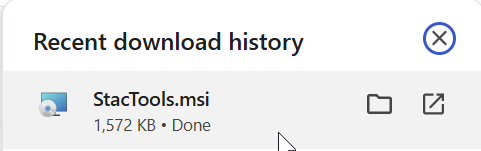
Browse to the folder that the file was downloaded, double click it to start the installation.
Click Next and then Install.
STAC Tools will be installed, once it's done click on Finish.
STAC Tools is installed!
For agencies that are able or want to push the installation via Group Policy, please find the command to silent install the STAC Tools.

msiexec /i StacTools.msi /qn
How to use STAC Tools?
STAC Administrators need to configure the Folder path that STAC Tools will be watching to upload the files. Browse to STAC 2 > Setup > Configuration > Client Tools Options.
Enter the folder path in the "Folder that contains files to be added to the Upload Center by STAC 3 Tool" setting and click Save.

STAC Tools folder path cannot be the same as the one for STAC 2 Client Tools. It must be a different one. The path must also end with a backslash (\)
STAC Tools folder path cannot be a shared folder. It must be a path that is a common location to all users, but it is unique to each workstation.
The first time after installation, the user needs to connect their credentials to the STAC tool. Browse to Profile > Open STAC Tools.
STAC Tools will launch. Click Sign in with browser to connect it.
A web page will open in the browser asking if the user would like to connect with user account that is logged into STAC 3. Click Allow.
Done! STAC Tools is connected and ready to start uploading files and/or to allow add linked folders.
Frequently Asked Questions (FAQs)
Do I need to install STAC Tools to All my users?
No! Contrary to STAC 2 Client Tools, STAC Tools only needs to be installed for those who will be uploading files or adding linked folders.
Do I have to upgrade STAC Tools every time a new STAC 3 version is released?
No! STAC Tools follows its own versioning. You may have a new version of STAC Tools without having a STAC 3 version and vice-versa.
Does STAC Tools upgrade automatically?
Yes! Once a new STAC Tools version is released and upgraded in your environment, STAC Tools will auto upgrade it.
Does the STAC Tools installation process uninstall/replace STAC 2 Client Tools?
No! STAC Tools will not uninstall/replace STAC 2 Client Tools during its installation. It will replace the Client Tools when STAC 2 is no longer supported (which has no set date). The STAC Tools is a new tool moving forward with full adoption of STAC 3.
When I opened STAC Tools I am receiving a message "You must install or update .NET run this application.", what does it mean?
STAC Tools requires .NET Runtime in the user's workstation to operate. When you see the image below, you can click in "Download it now" and install the .NET Runtime. We are working to improve the installation to add the .NET Runtime installation as part of the tool installation.
Can STAC Tools be launched automatically every time I start my computer?
Absolutely! There is the "Run on Windows Logon" setting under STAC Tools > Settings > General that when enable is going to automatically launch STAC Tools in the background.
When does a user need to reconnect the STAC Tool?
If a user signs out or restart/shutdown their workstation and they don't have the tool flagged to run with windows logon, the user will be required to go to the profile menu and open/connect to the STAC Tools.
What happens if my computer loses power or network connection while processing files?
STAC Tools will start over the upload for these files. Files may temporarily be marked as Error, but it will retry 3 times until is set as an error. These situations happen every single day, because the user move from their desk to a meeting room and the network connection was changed or because they forget to plug in to charge it, either way the STAC Tools is prepared to handle your files after the situation has been back to normal.
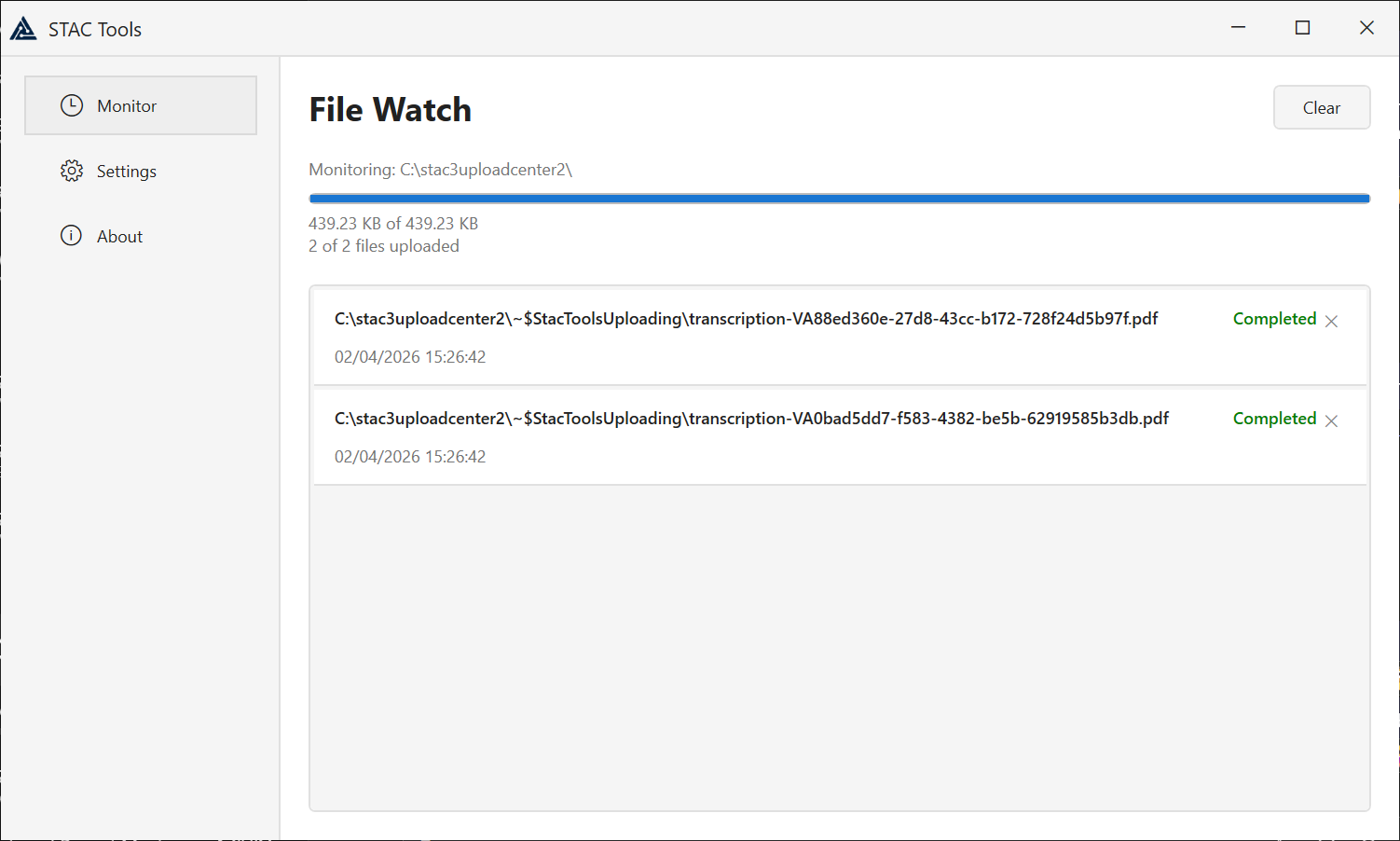
Can I see which files are being uploaded and their status?
Yes! In the Monitor tab, you can see all the files that are being processed, those that have been completed, and, eventually, those that have failed.
How do I know that STAC Tools is running?
Either you are going to have STAC Tools icon in the Task bar or in the System Tray (Icon tray near to the clock).
Task bar: 
System Tray: 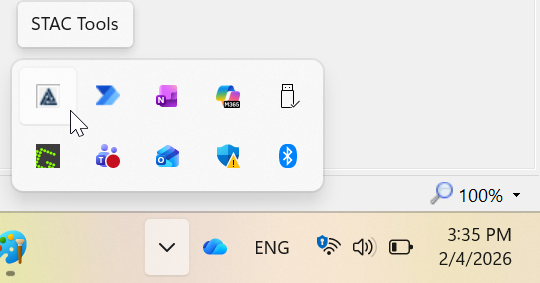
Related Articles
How to use the Assignment Workflow?
What is the Assignment Workflow? The assignment workflow module allows agencies to build multiple workflow processes for document approval. Assignments can have a document or image associated, but no files are required. Usually, actions that result ...What is STAC 3?
STAC 3 is the newest version of the case management system developed by Computer Information & Planning, Inc. (CIP). Designed specifically for prosecutors, public defenders, and justice system agencies across Florida, STAC 3 delivers a modern, ...Navigating STAC 3
Accessing the Options Menu In STAC 3, the options menu is now accessible by right clicking on the section of the screen. Users will know if the screen has an options menu available because there will be ellipses shown at the end of the row, when the ...How to use Forms?
What is STAC forms? CIP Portal Forms lets users create, design, and send custom Forms/Questionnaires within STAC to anyone with a valid email address. Upon completing the forms, the files will be automatically added back into STAC in the Form tab. ...How to use My Notifications?
How to use My Notifications? The My Notification screen in My STAC is currently only used for Acknowledging Notifications. Users will know they have pending Notifications because the Notification section will be orange, and the number represents how ...