How to edit a Document?
What options are available when editing a Document in STAC?
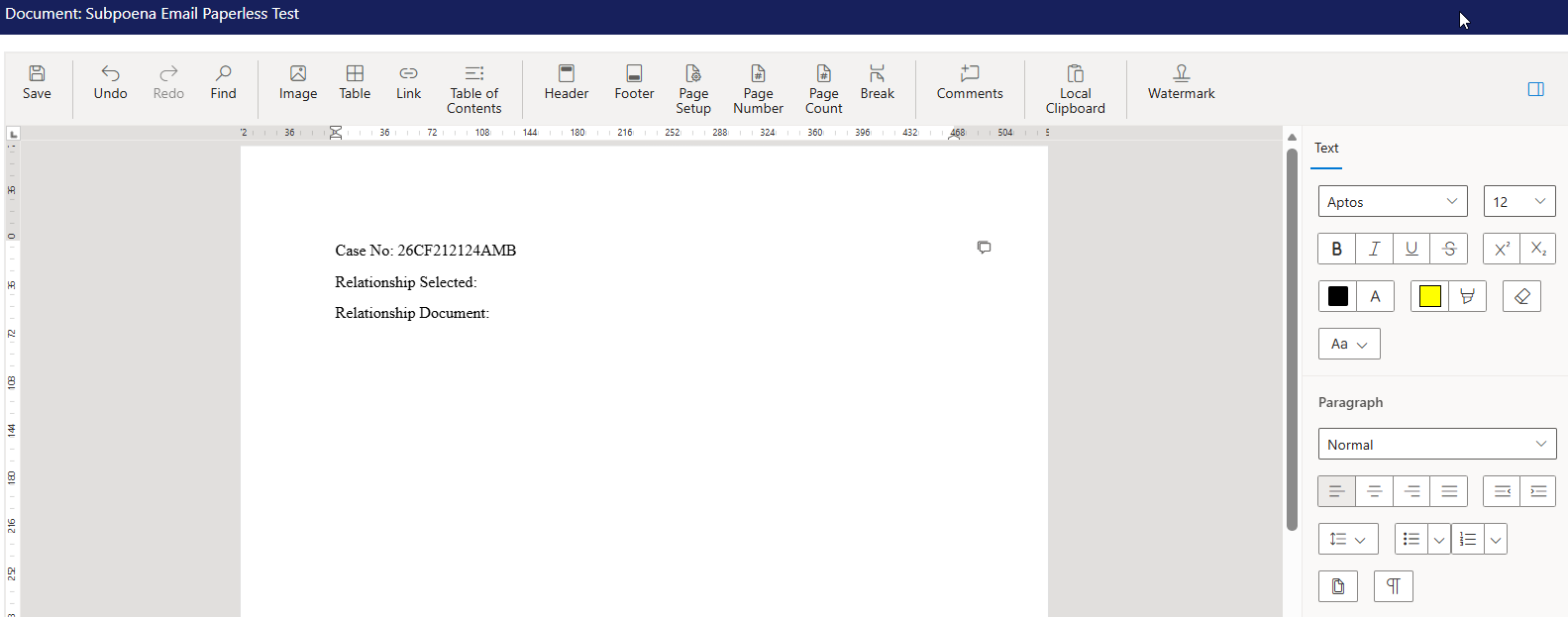
When opening the Document editor, users will see the action bar on the top of the screen.
The first option is where they can Save their changes.
The first option is where they can Save their changes.
The next section is where users can undo an action, redo an action, or search the document text.
The next section is where users can add an image, table, link, or a table of contents.
The following section is where users can edit the Header, Footer, change the page setup, add page numbers, and break in the page.
The next section is where users that are editing the document can leave a comment/reply to easily communicate with other users that are updating the same document.
The next button is the local clipboard where users can paste text and images into the document.
The last button is the Watermark, this is where users can add/edit the watermark image or text.
How to add a link in the document?
To add a hyperlink, users can either paste the hyperlink URL directly in the Document. Or you can choose the option Link to a add a text to display instead of showing the actual link.
First the user will add the text that will display in the document, then the Address is the URL, the ScreenTip text is optional, it will show the text when the user hovers over the link in the document.
They also have an option to use a Bookmark instead of adding the Address by clicking on the Use Bookmarks option.
First the user will add the text that will display in the document, then the Address is the URL, the ScreenTip text is optional, it will show the text when the user hovers over the link in the document.
They also have an option to use a Bookmark instead of adding the Address by clicking on the Use Bookmarks option.
How to add a Table of Contents?
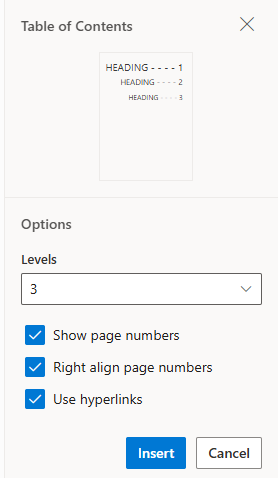
Users can select the Table of Contents option for the editor to create a Table of Contents based on the headers in the document.
Users are able to choose the Levels and choose whether or not the page numbers are shown in the Table of Contents.
Users are able to choose the Levels and choose whether or not the page numbers are shown in the Table of Contents.
How to add a Comment in a Document?
Users are able to add a comment in a Document, the comment is not merged into the document or sent anywhere. It is a tool for the users working on the same document to be able to leave notes or questions to collaborate whenever they individually work on the document.
Users can see that there is a comment only when editing the document. There will be a small comment icon next to the area the comment was added.
Users can reply, edit, or even set the comment as Resolved.

Users can see that there is a comment only when editing the document. There will be a small comment icon next to the area the comment was added.
Users can reply, edit, or even set the comment as Resolved.
How to use the Page Setup?
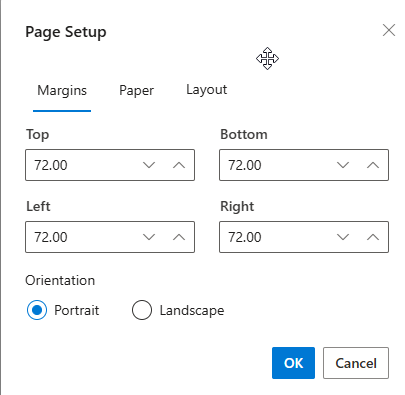
This section is where users can change the Screen margins, Paper size, and layout.
The values are in Pixels so when adding the values make sure to convert the inches into Pixels. (1 inch = 96 pixels)
How to add/edit a Hyperlink?
Related Articles
How to Merge Documents?
How to merge a document? With the case selected, select the Merge button at the top of the screen. Once selected, the Document categories are available on the left and makes it easy for users to find the document they need to use for the specific ...How to use the Document Tab?
How to use the Document Tab? The Document tab is where all of the merged documents are listed for a case. Users can also see which documents were grouped and e-filed together from the Document tab. The Document tab is a place for users to view all of ...How to use My Pending Document?
Introduction The Pending document screen is where the user that is logged in can view their documents that are waiting to be approved or rejected. This screen is located in the My STAC area. The screen will show users how many documents are pending ...What are Merge Document Variables?
Merge Documents Variables Merging documents is one of the most important functions in STAC, and the variables are the engine that powers the merge. There are hundreds of variables available in STAC that list virtually any field stored in the ...How to configure the Document Maintenance?
Introduction Merging documents is without a question one of the most powerful functions in the system. Agencies can design and create their own documents pulling data from STAC. There are variables available to retrieve dates, names, charges, ...