How to add Watermarks to Documents?
How to add a Watermark to a document in the document editor?
As of version RC-3, when editing a document template there is a watermark option in the tool bar.
Users are able to add a Text Watermark or Image Watermark
Users are able to add a Text Watermark or Image Watermark
To add a Text watermark the user will select the Text Watermark option and have the ability to define the Text, Font, Color, Transparency, and Layout
To add an image as a watermark, user will select the Picture watermark option and choose an image file, Scale the image, and Washout the image.
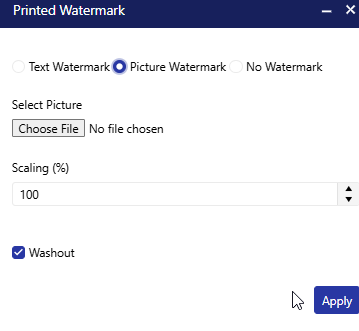
If the user wants to remove a Watermark, they can choose the No Watermark option.
How to know if a document has a watermark?
Users will know if the document has a watermark because the Watermark symbol will be highlighted Red on the Action bar.

Users are not able to preview the Watermark in the document in the document editor screen. However, they will be able to see the Watermark when previewing the Template.
Will documents that were created in STAC 2, show the Watermark in STAC 3 documents?
Yes, Documents that have a true Watermark that was created in Microsoft Word will be displayed in STAC 3 Documents.
However, if a document is using an Image that was manipulated to be a Watermark, those will not appear as a Watermark in STAC 3 and will require the administrator to edit the documents and add the Watermark through the STAC 3 document editor.
However, if a document is using an Image that was manipulated to be a Watermark, those will not appear as a Watermark in STAC 3 and will require the administrator to edit the documents and add the Watermark through the STAC 3 document editor.
Related Articles
How to Merge Documents?
How to merge a document? With the case selected, select the Merge button at the top of the screen. Once selected, the Document categories are available on the left and makes it easy for users to find the document they need to use for the specific ...What are the different types of Documents?
What are the available Document Types? There are two types of documents: Case and Relationship. Case Documents when merged yield one document per case. Relationship documents yield one document per relationship selected. Letters and subpoenas are ...How to use My Pending Document?
Introduction The Pending document screen is where the user that is logged in can view their documents that are waiting to be approved or rejected. This screen is located in the My STAC area. The screen will show users how many documents are pending ...What is the Document Search?
What is the Document Search? The Document Search screen is where users are able to search merged documents by different criteria, including E-File Documents that have not been filed yet. How to use the Document Search? To access the document search, ...How to configure the Document Maintenance?
Introduction Merging documents is without a question one of the most powerful functions in the system. Agencies can design and create their own documents pulling data from STAC. There are variables available to retrieve dates, names, charges, ...